VS Code
Use GitHub Copilot's agent mode to write resumes in ATS-tested templates.
Overview
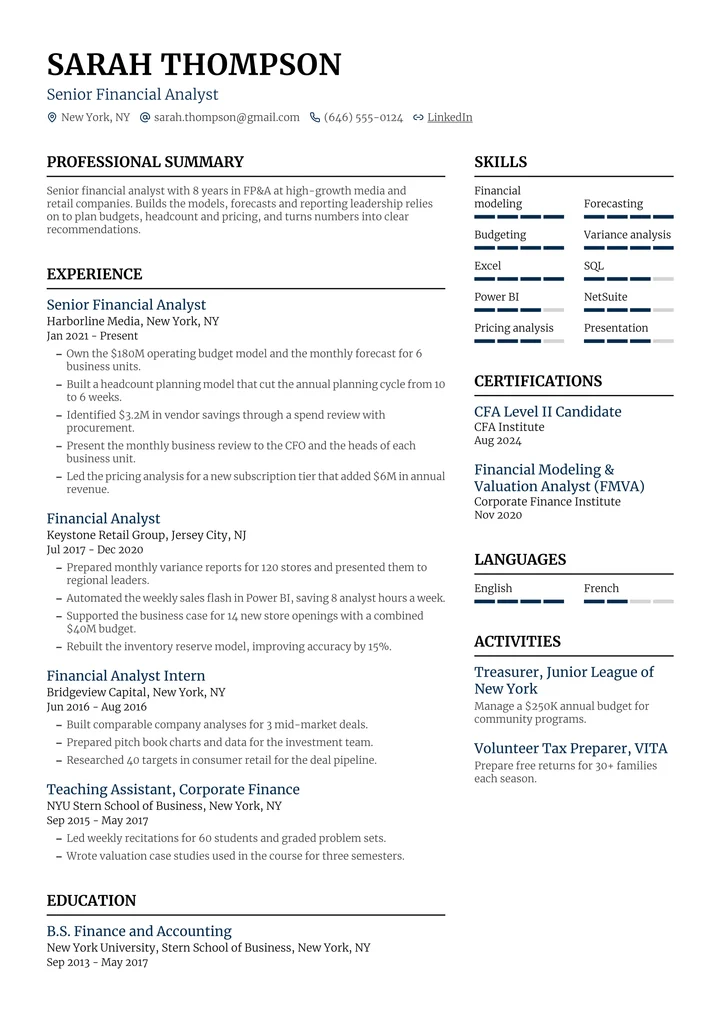
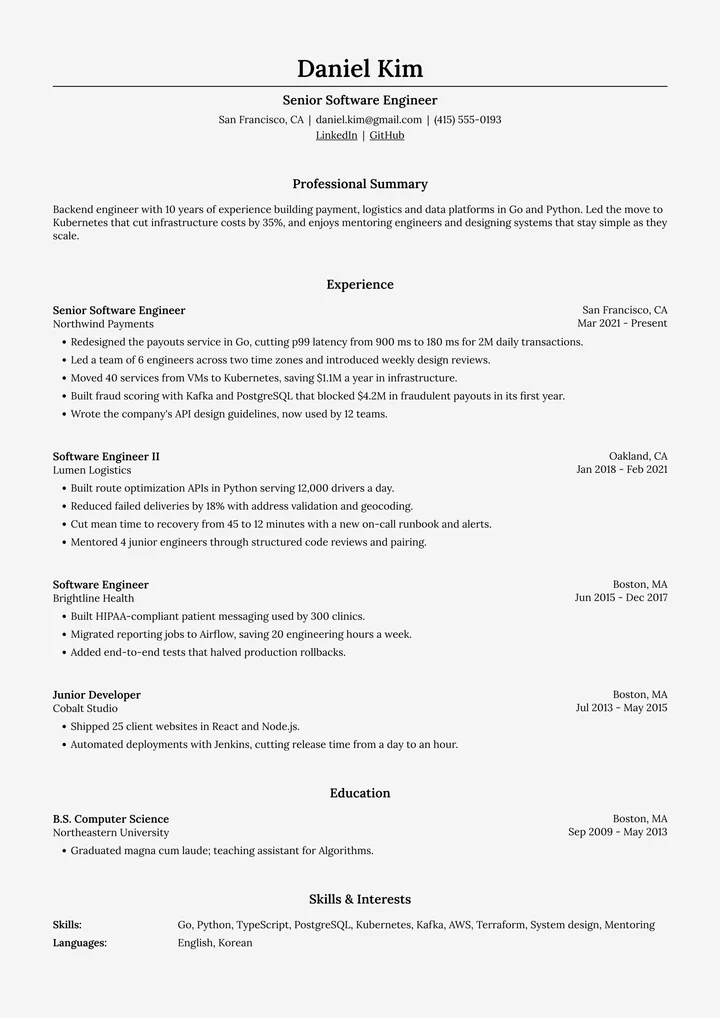
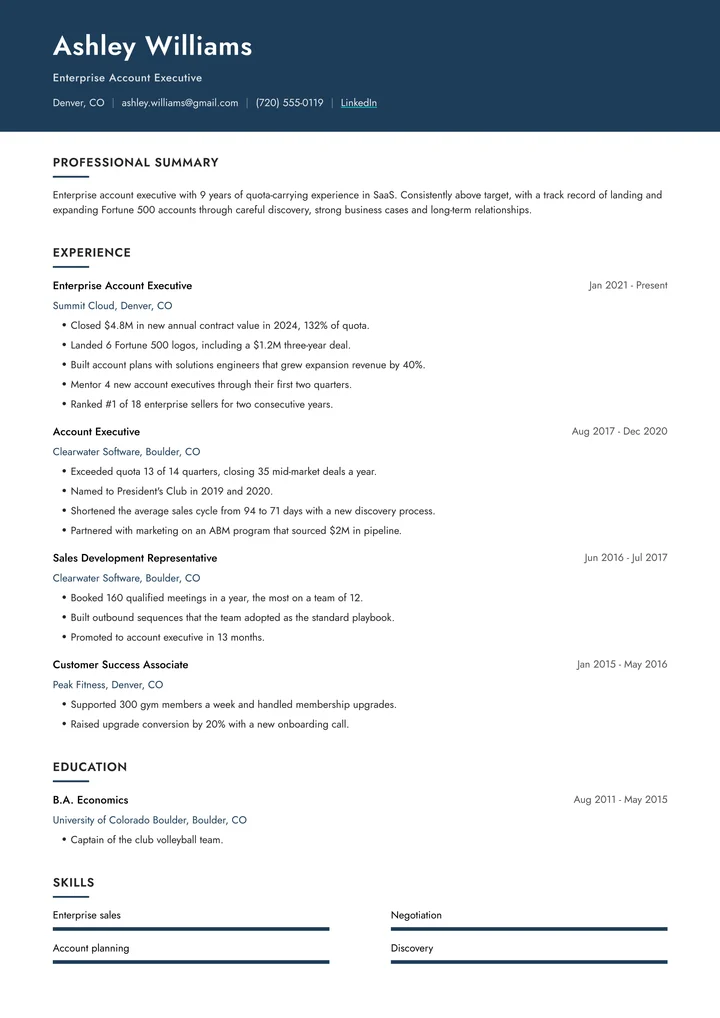
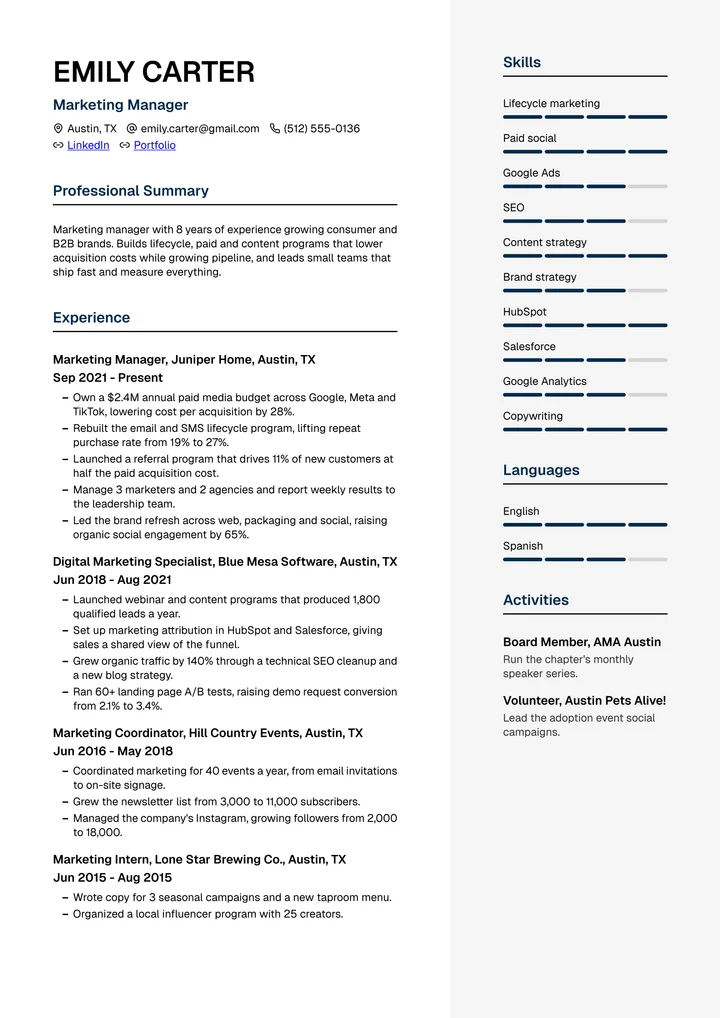
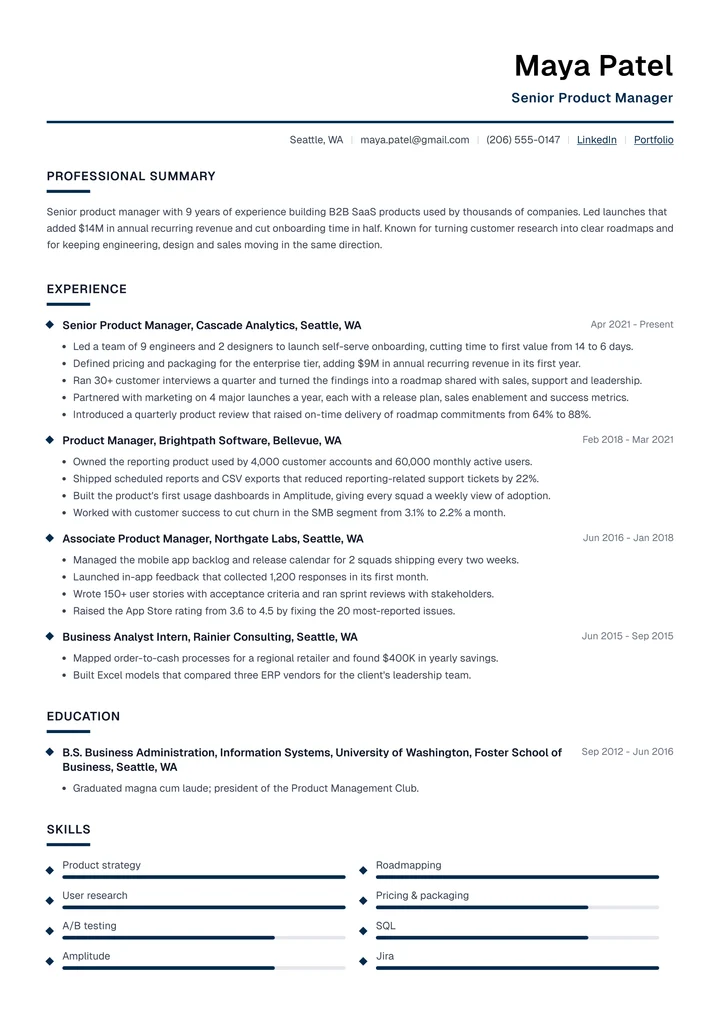
Connect Resumondo to GitHub Copilot in VS Code and it does more than write resume text. It lays every resume out in an ATS-tested template, saves it to your account and gives you a link to the PDF.
Add it in one click or with a small config file, then switch Copilot Chat to agent mode and ask.
What VS Code can do
Pick an ATS-tested template
It sees every template and color, and lays your resume out in the one you choose.
Write and save your resume
It writes the resume in the chat and saves it to your account, with a link to the PDF.
Tailor it to a job
Paste a job post. It reads your saved resume and saves a version for that job.

Write cover letters
Letters come out in a design that matches your resume, with your details filled in.
How to connect it
- Click Add to VS Code, or add this to your project:
{ "servers": { "resumondo": { "type": "http", "url": "https://resumondo.com/api/mcp" } } } - When VS Code opens a sign-in, sign in to Resumondo and click Allow.
- In Copilot Chat, switch to Agent mode.
On Copilot Business and Enterprise, an admin has to allow MCP servers first.
What VS Code can access
After you sign in, VS Code gets these tools, and nothing else:
- get_profileReads your name and email, to know whose account it's working in.
- list_resumesLists your saved resumes, to find the one you mean.
- get_resumeReads a saved resume, to improve it or tailor it to a job.
- list_templatesLists the templates and colors you can choose from.
- create_resumeSaves a new resume to your account and returns a PDF link.
- update_resumeReplaces the content of a resume you saved earlier.
- create_cover_letterSaves a new cover letter in a matching design.
- update_cover_letterReplaces the text of a cover letter you saved earlier.